Clear Lens · free Chrome extension
Puzzle Hub, free
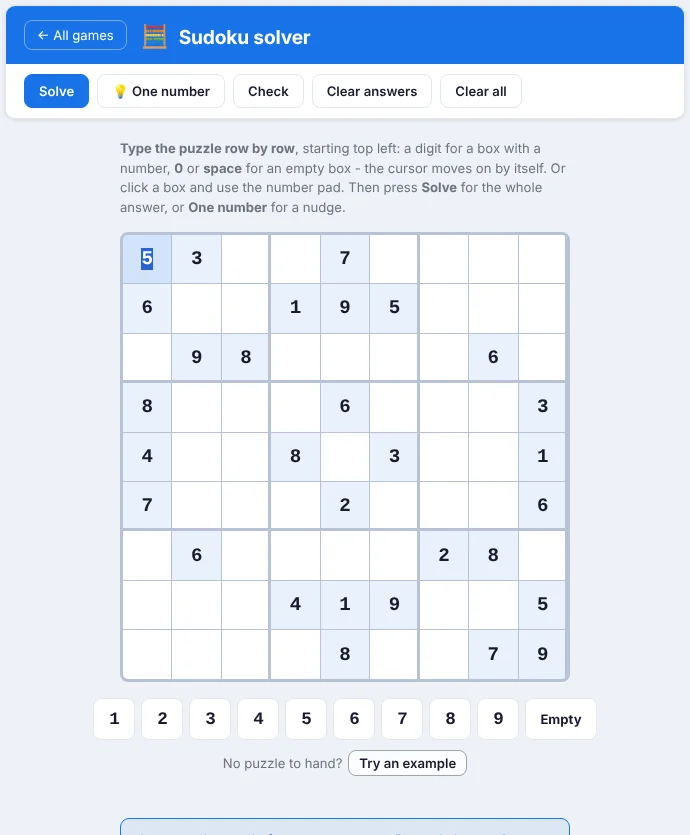
Six puzzles and a Sudoku solver for a short break between meetings. No account, no ads, and it never connects to the internet.
SHA-256: e565a95e91ae27bf7cb2a24612e54015bc74d8b6b66b53a16b10dde81faedbd6
About two minutes
How to install it
Chrome installs extensions straight away only from its Web Store. Until Puzzle Hub is there, you add it yourself in five steps. The same instructions are in the zip, in "How to install.txt".
-
Download and unzip
Click Download above. Then right-click the zip > Extract All... (Windows) or double-click it (Mac). Keep the folder somewhere permanent, such as Documents: Chrome loads Puzzle Hub from it every time, so do not delete or move it later.
-
Open the extensions page
In Chrome type
chrome://extensionsin the address bar and press Enter. In Edge:edge://extensions. -
Turn on Developer mode
Chrome: the Developer mode switch at the top right of that page. Edge: the switch in the menu on the left.
-
Load unpacked
Click Load unpacked and choose the folder called puzzle-hub: the one with manifest.json inside. Not the zip, and not the folder above it.
-
Pin it and play
Click the puzzle-piece button at the top right of Chrome, then the pin next to Puzzle Hub. From now on, click the blue Puzzle Hub icon to open the games.

- "Developer mode" reminderChrome may remind you that developer-mode extensions are on. That is normal for anything not installed from the Web Store; you can keep Puzzle Hub.
- UpdatingUpdates are not automatic. Download the new zip, replace the puzzle-hub folder, then press the round Reload arrow on Puzzle Hub in
chrome://extensions. Your scores stay. - Removing itOpen
chrome://extensionsand click Remove on Puzzle Hub. Then you can delete the folder. - Checking the fileThe SHA-256 above lets you check the download is ours: in Windows PowerShell,
Get-FileHash puzzle-hub-1.3.1.zip.
Stuck, or found a bug? Email us. See the other Clear Lens extensions.